

Most of this can be left alone. Three settings matter on a bike — microphone mode, noise cancellation and microphone gain — and the rest exist for when something specific is wrong.
The sections below are in the order the app shows them, so this page can be read beside the screen rather than searched. Diagnostics has a page of its own: it is not in Settings at all, and it answers a different question — not what should this be set to but why did that happen.
Audio devices
How sound gets in and out — including several switches that are not obviously “devices” but sit here because they belong to the route rather than to the microphone.
Choosing the devices
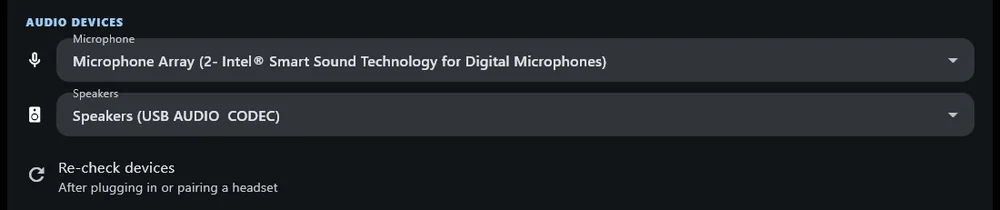
On desktop you pick input and output explicitly, and Re-check devices re-reads the list after you plug in or pair a headset.
On a phone there is nothing to choose. The platform owns the routing and switches to a headset when one connects, so the pickers are not shown at all — the app says so, rather than offering a control that could do nothing.
Test microphone (hear yourself)
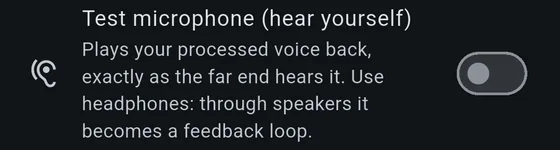
Plays your processed voice back exactly as the far end hears it — after suppression, gate and levelling. The fastest way to judge a profile.
Use headphones. Through speakers it is a feedback loop.
Echo cancellation
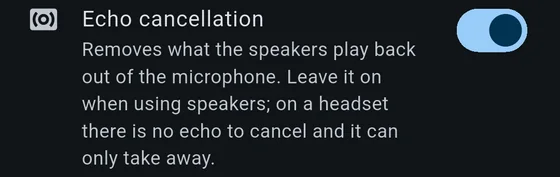
On by default, and worth leaving on when you are using speakers. A speaker a few centimetres from the microphone sends everybody back to themselves with a delay, which is more distracting than almost any other audio fault.
On a headset there is no echo to cancel and it can only take something away.
Claim the microphone
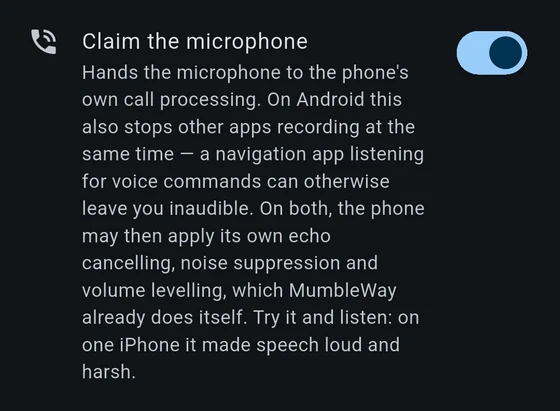
On by default. It hands the microphone to the phone’s own call processing — the same treatment an ordinary phone call gets.
On Android it also stops other apps recording at the same time. From Android 10 two apps may hold the microphone at once, and the one that loses is handed digital silence rather than an error: a navigation app listening for voice commands can stop the others hearing you while MumbleWay still looks connected. That failure is silent, complete, and leaves nothing on screen to act on, which is why this setting is on rather than off.
The cost is real and you may be able to hear it. The same switch lets the phone apply its own echo cancelling, noise suppression and volume levelling — all three of which MumbleWay already does. Two cancellers working on one echo is worse than either of them alone.
How to tell. Open Diagnostics and read Echo returned under This device, once with this on and once with it off. Read it as a comparison between the two, never against a number: the figure depends on how loud your output is, which the app has no way of knowing. On one iPhone the setting made speech loud and harsh, which is audible without opening any panel.
Light noise model

Swaps the speech cleaner at the head of the chain for a smaller one that costs about a third as much to run. It is off by default, and it is a trade rather than an upgrade.
Turn it on if your phone is giving stages up: paying for the cleaner model up front can keep the rest of the noise chain running instead of it being switched off piece by piece, which is the worse outcome of the two.
What it costs is real. The smaller model is more aggressive, not worse — it takes 4 to 6 dB more out of the speech along with the noise, which wins where the background is loud enough to be worth removing and loses where it is not. So it is harsher on a quiet voice in a quiet room, and it adds 20 ms of delay, because it looks two frames ahead where the standard model looks none.
Some devices take it whether or not you choose it. A single-core phone gets it from the start, and any device that runs out of everything else to give up ends on it before losing the cleaner altogether.
Even out speaker loudness
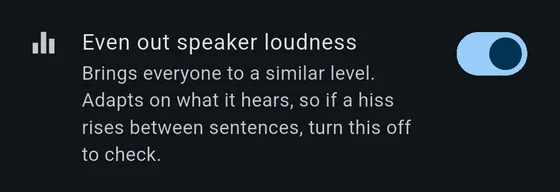
Brings incoming voices to a similar level, so a quiet rider and a loud one arrive at the same volume. It adapts to what it hears, which has one visible consequence: if a hiss seems to rise between sentences, turn this off to check. It may be levelling the gaps up rather than anything being wrong in the noise chain.
Incoming audio buffer
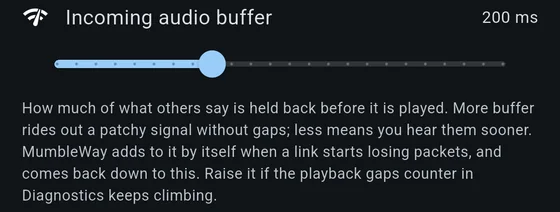
How much of what others say is held back before it is played, in milliseconds. More buffer rides out a patchy signal without gaps; less means you hear people sooner.
The buffer is elastic: when a backlog builds — leaving a tunnel, say — it plays the excess off at up to double speed by removing pitch periods, rather than dropping it or letting everybody fall permanently behind. The app also raises it by itself when a link starts losing packets, and comes back down to your setting afterwards.
Raise it if the playback-gaps counter in Diagnostics keeps climbing. Otherwise leave it alone.
Room tone

Adds a short tail under incoming voices, so a talker cut off by voice activation does not stop mid-breath. Cosmetic, and some people dislike it. It applies to what you hear, never to what you send.
Test speakers

Plays a short tone on the selected output.
Levels
Microphone gain and speaker volume, with the live meter between them.
Microphone gain
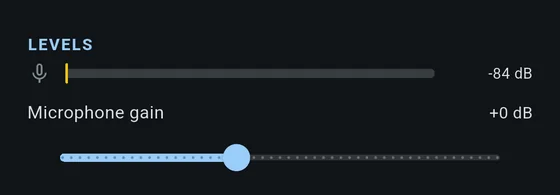
Aim for the meter to peak around three quarters while you speak normally. Too much gain lifts the engine noise along with your voice, and the suppression then has a harder problem to solve than it needed to.
Speaker volume

For incoming voices only.
Noise cancellation
Filters wind, engine and road noise out of your microphone. Changes take effect the next time the app starts.
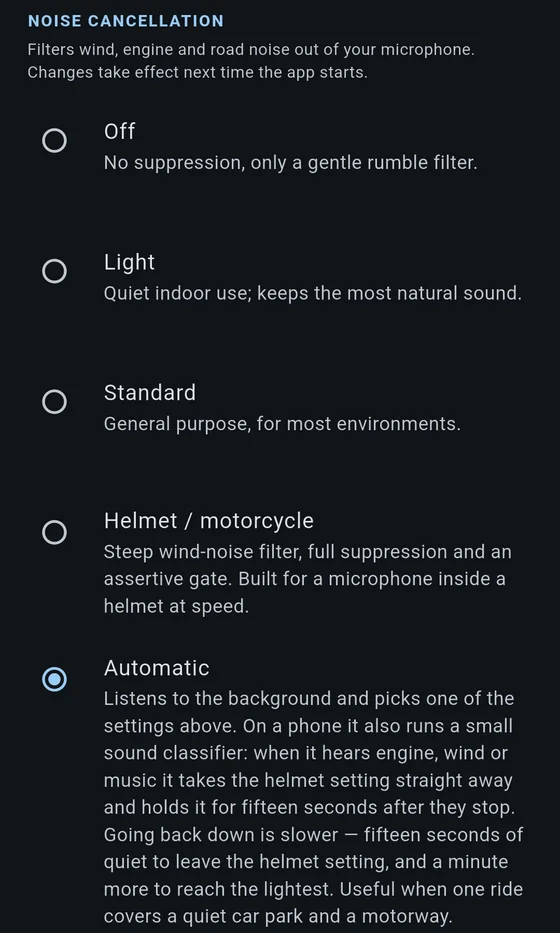
| Profile | What it is for |
|---|---|
| Off | No suppression, only a gentle rumble filter. A diagnostic setting rather than a condition to ride in. |
| Light | Quiet indoor use. Keeps the most natural sound. |
| Standard | General purpose, for most environments. |
| Helmet / motorcycle | Steep wind-noise filter, full suppression and an assertive gate. Built for a microphone inside a helmet at speed. |
| Automatic | Listens to the background and picks one of the settings above. Useful when one ride covers a quiet car park and a motorway. Never chooses Off. |
Automatic is the default, and for most people it is the answer: it reaches the helmet setting within a second of hearing an engine and takes its time coming back down. Choose Helmet by hand if you would rather it never changed, or Standard if you are not riding.
How Automatic decides
Two things: what it measures, and how slowly it lets go.
How far your voice stands above the background. When the gate opens on a phrase, Automatic measures that margin across the first second of it. Below 20 dB it takes the helmet setting, below 35 dB Standard, and above that Light.
The choice lands on the phrase it was measured from rather than the next one, so you are not heard through the old profile while the new one waits its turn. It decides again at the start of the next phrase, and sooner than that if the background falls by half — pulling up at a light does not leave you on the helmet setting until you happen to speak.
This replaced a sound classifier, a small neural model that listened for engine, wind and music and voted for the helmet setting when it heard them. It has been removed from the chain: the margin above the background answers the same question without a model to run, and it answers the question that actually decides whether you are understood — not what is behind you, but whether you are louder than it.
Dialling down is slow, and slower the further down it goes. Leaving the helmet setting for Standard needs fifteen seconds of the background actually asking for it; going on from Standard to Light needs a minute more. It walks down one step at a time rather than jumping, because Light barely suppresses anything and arriving there wrongly is the expensive mistake.
Going up has no such wait. Being under-suppressed at speed loses you; being over-suppressed at a coffee stop sounds slightly processed.
Diagnostics shows where it landed — the profile in force, and beside it the margin it was chosen from, as Auto is using Helmet (14 dB over the room). See Diagnostics.
Feedback suppression
For when the speaker is heard by the microphone. Echo cancellation removes what it can predict; these handle what is left, and they work in quite different ways.
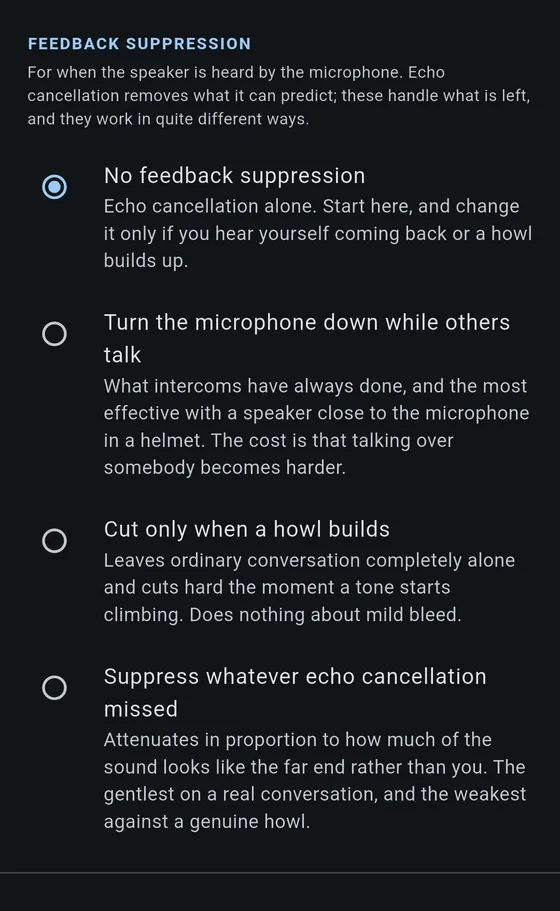
| Setting | Behaviour |
|---|---|
| No feedback suppression | Echo cancellation alone. Start here, and change it only if you hear yourself coming back or a howl builds. |
| Cut only when a howl builds | Leaves ordinary conversation completely alone and cuts hard the moment a tone starts climbing. Does nothing about mild bleed. |
| Suppress whatever echo cancellation missed | Continuous, for persistent bleed. |
| Turn the microphone down while others talk | Ducking. Blunt, effective, and costs you the ability to interrupt. |
Hiss removal
For the steady hiss a microphone adds under everything.
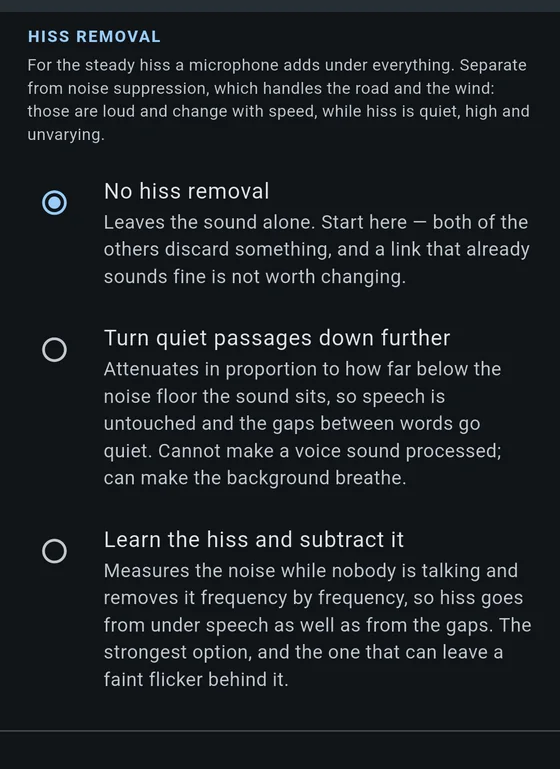
| Setting | Behaviour |
|---|---|
| No hiss removal | Leaves the sound alone. Start here — both of the others take something away as well. |
| Learn the hiss and subtract it | Tracks the steady noise floor and takes it out spectrally. |
| Turn quiet passages down further | An expander. Cheaper, and it can sound gated on quiet speech. |
Microphone mode
How the channel opens. This is the setting with the largest effect on how the app feels to use.
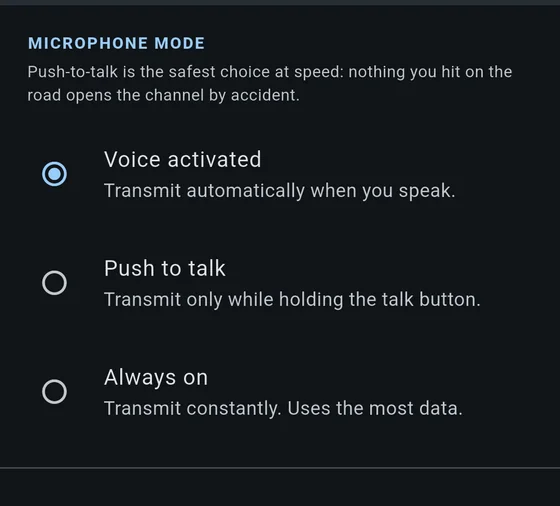
| Mode | What it does | When |
|---|---|---|
| Voice activated | Transmits automatically when you speak. The default. | Riding. You have no free hand, and the look-ahead means the first consonant survives. |
| Push to talk | Transmits only while the talk button is held. | Loud passenger, music playing, or anywhere a false trigger would be worse than a missed word. |
| Open mic | Transmits constantly. | A quiet room. Uses the most data and sends every noise you make. |
Voice activation and music do not get along. Sharp, tonal, plucked notes open the gate. If you ride with music and use the same headset, push-to-talk is the reliable answer today.
The mode cannot be changed during a call. Other riders are told which one you are using when you connect, so changing it mid-conversation would leave their screens describing something you are no longer doing. Disconnect to change it, and the control says so while it is locked.
Tap the phone to talk
Off by default, and off it changes nothing: the app takes the headset’s hands-free profile when you connect and holds it for the call, as it always has.
The cost of holding it is that everything you hear drops to telephone bandwidth — the group, and any music from another app — because a Bluetooth headset carries a microphone only on a profile that sounds like a phone call. Most of a ride is listening, so most of a ride pays that for nothing.
With this on, the app gives the profile back while you are only listening, so music plays at full quality, and takes it again when you tap the phone three times — through a pocket, or a bag on your thigh. It hands the microphone back by itself after a stretch in which you have not spoken.
It needs a headset to do anything, and it will wait for one. The whole point is giving a headset’s hands-free profile back while nobody is talking; with nothing connected there is no profile to give back, so the microphone stays open, nothing listens for taps, and an amber notice in the panel says so. Turn a headset on — or turn one that has dropped off and on again — and it starts working with nothing else to do. So you can arm it, then put your helmet on.
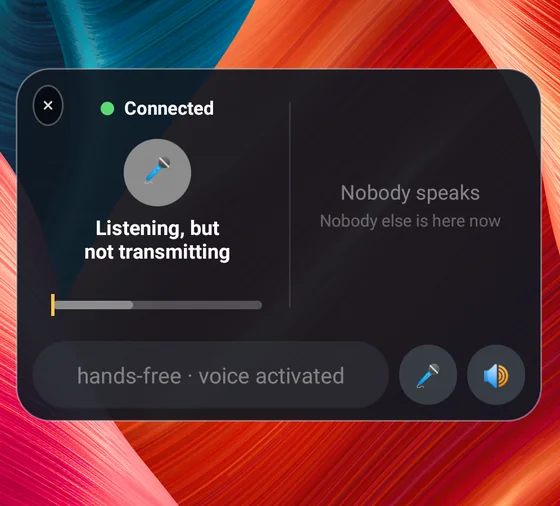
The panel can also be pulled down to a handle when you do not want it taking up the screen, and it stays down until you pull it back up.
Taps are heard by the phone’s own microphone, which is why the way back is a silence rather than three more taps: while a headset is carrying your voice, the phone is not listening, and a tap on a helmet shell cannot be told from the road — a hands-free link removes the very things that distinguish them.
| Hand the microphone back after a silence | How long a silence closes it, from ten seconds to two minutes, thirty seconds by default. Not optional, because it is the way back. |
Two things worth knowing before you rely on it:
- You can hear which state you are in. Full-quality music means the microphone is off; telephone-quality means it is live. The feature tells you what it is doing as a side effect of being the feature.
- Taking the profile is not instant. A headset takes a second or two to negotiate, so after a tap you hear a short countdown and then a rising two-tone — speak after that. Releasing plays the same tones falling, ending in the squelch a radio makes. Those are the signal; a lost word before the rising tone is expected rather than a fault.
Not available with push to talk, and the two switch each other off. A button exists to put you on air the instant it goes down, which it cannot do if the microphone is closed until you tap.
Let MumbleWay users unmute me
On by default. Another rider using MumbleWay can mute your microphone with Mute on server (for everyone) in the menu beside your name — for when noise cancellation is losing to the wind and the whole channel hears it — and can unmute it the same way, for when you muted yourself and forgot. The request goes to your app directly, so it works on servers where they have no permission to mute anybody.
Either way you hear a sound and see who did it. Turn this off and only you can unmute your microphone. Being muted cannot be turned off, but your own mute button always turns the microphone back on, and your app acts on at most one request from others every 30 seconds. If whoever muted you is also allowed to mute people on that server, you are muted on the server as well, and only somebody with that permission can lift it.
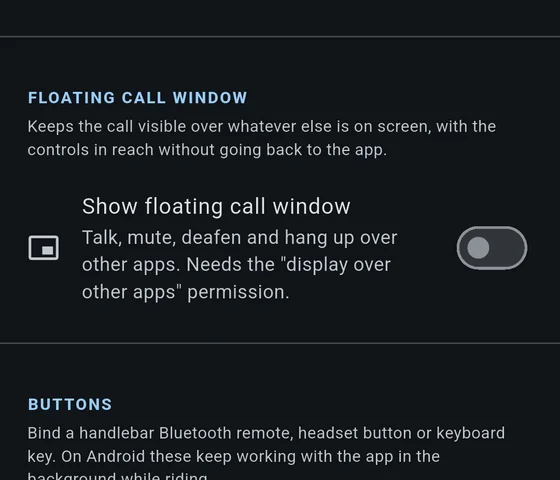
Floating call window
Keeps the call visible over whatever else is on screen, with the controls in reach and without going back to the app.
- Android needs the “display over other apps” permission.
- iOS uses Picture in Picture, which allows three buttons: play/pause talks, skip back mutes, skip forward hangs up (twice to confirm).
The window has a close button, and it means “not right now”. It is not the same as turning the feature off, which is this setting: closing it lasts until you go back into the app, and the next time you leave the app it returns. It is deliberately not remembered between rides, so tapping it once cannot leave you hunting for the talk button a week later. Picture in Picture on iOS behaves the same way, so the gesture has one answer on both phones.
Buttons
Bind a handlebar Bluetooth remote, a headset button or a keyboard key to push-to-talk, mute, deafen or hang up. Press Learn, then the button on the remote. On Android these keep working with the app in the background while riding.
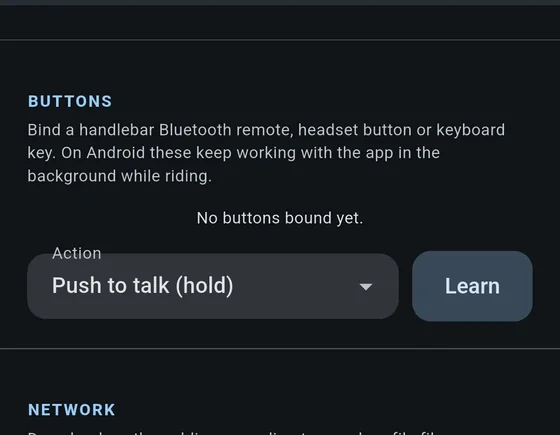
On iOS, a remote reports a media button press but not a hold. Push-to-talk-with-hold therefore cannot work from one — use the toggle action instead. While a media button is bound, the remote controls MumbleWay rather than your music app.
Network
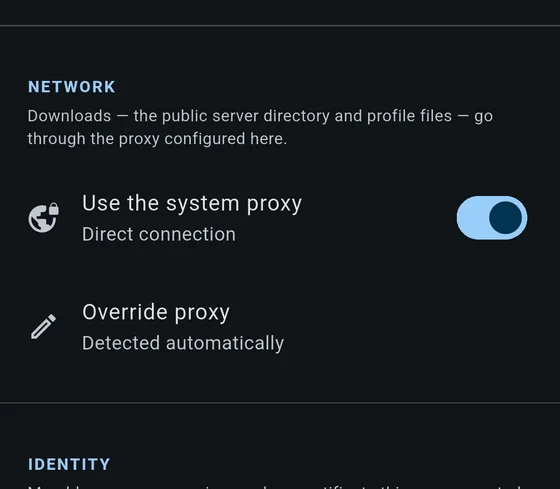
Two separate settings, because a proxy that suits one of these jobs will often refuse the other.
Use the system proxy — for what the app downloads: the public server directory and profile files. It does not carry voice. On, the line under it says what was found and is being used: Direct connection, System proxy, Environment proxy or Manual proxy, each with the address. Off, it reads Off — connecting directly.
Override proxy — where you type one yourself, when detection gets it wrong
or there is nothing to detect. It takes a host:port; leave it empty to
detect automatically and the switch above goes back to deciding.
Proxy for servers — for the connection to a Mumble server itself. Off unless you set it, and never found automatically: a proxy your browser uses will often refuse a Mumble port. Four choices — Direct, System proxy settings (take what this machine already says), HTTP(S) proxy and SOCKS5 proxy, the last two with an address and, if the proxy wants them, a username and password.
A proxy login is kept on this device only and is never synced: it can be used for anything, not only for MumbleWay.
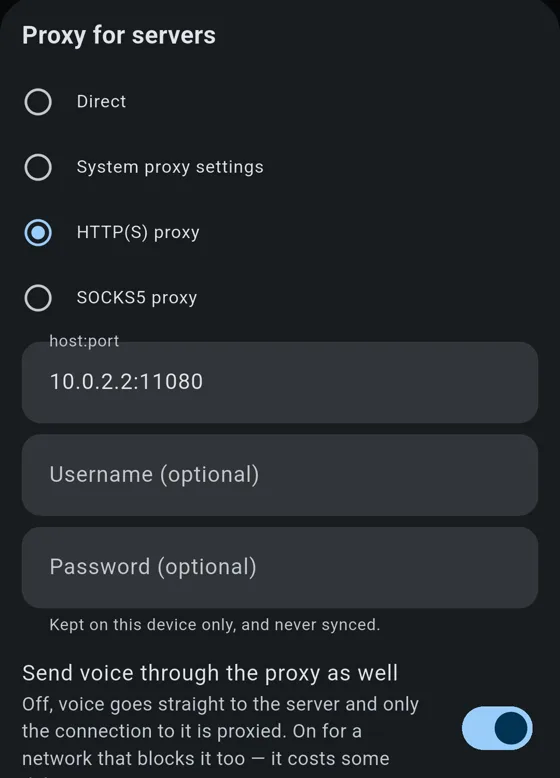
Whether voice goes through it too
Off by default. Only the connection to the server is proxied, and voice goes straight to the server over UDP. That is the lower-latency path, and it is also the one that cures the usual fault — a network that interferes with the long-lived control connection while leaving UDP alone.
Send voice through the proxy as well is for a network that blocks UDP too. Voice then rides the proxied connection, in Mumble’s own tunnelled mode, which costs some delay. Such a server shows “Reached through a proxy” in the list instead of a ping, because the ping is a bare UDP datagram and no proxy here can carry it.
One server, or all of them
Every server has a proxy row of its own in its form, with the same four choices and one more — Global settings, which is where every server starts. So a proxy one server needs does not drag the rest through it.
Always reach a server’s own proxy through this one links them into a chain: a server with a proxy of its own is dialled through the app’s. Servers set to Direct stay direct — the switch chains, it does not override.
Servers you are already connected to keep their current route until they reconnect. Cutting a live connection from a settings screen would take somebody out of a conversation without warning.
Handing one to somebody else
Share this proxy sends yours as a link or a QR code, and a server you share carries its proxy when you set one explicitly — never when it is on Global settings or Direct. The login travels only if you say so, in the same dialog that asks about the server password, and the far side is shown the proxy before accepting it rather than after.
A proxy is a fact about your own network. Many have addresses nothing outside it can reach, so a shared one may simply not work; and one that does work routes somebody else's connections through a machine you may not have meant to volunteer.
Sync
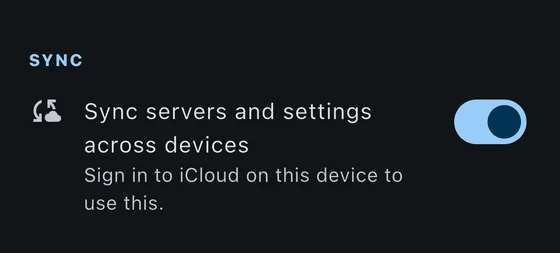
Sync servers and settings across devices copies your server list and settings between your own devices, via your own iCloud or Android Backup account. Sync now pushes and pulls immediately rather than waiting for the next time the app gets round to it. Passwords are held separately from the server list. Nothing passes through any server of ours, because there is no server of ours.
Shown only where something can actually carry the data. On Windows there is nothing behind it, so the section is absent rather than permanently greyed out.
Identity
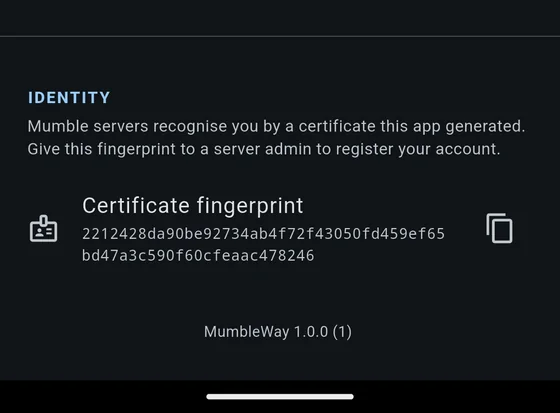
Your client certificate and its fingerprint. Mumble servers recognise you by this certificate rather than by a password, so it is worth keeping — it is what lets a server remember your registration.
Diagnostics
Not a setting, and no longer on this page. It is the waveform icon in the toolbar, and it has grown enough to need its own: the analyser, a light per stage of the capture chain, the counters, thirty seconds of history, the engine log, and recording a ride to listen back to.
See Diagnostics.